
Login Page: Site Booster Module
The Ocean Site Booster's Login Page module enables you to customize the default WordPress login page (https://..../wp-login.php ).

To access Login Page, click on the cog icon, then toggle to enable the module.
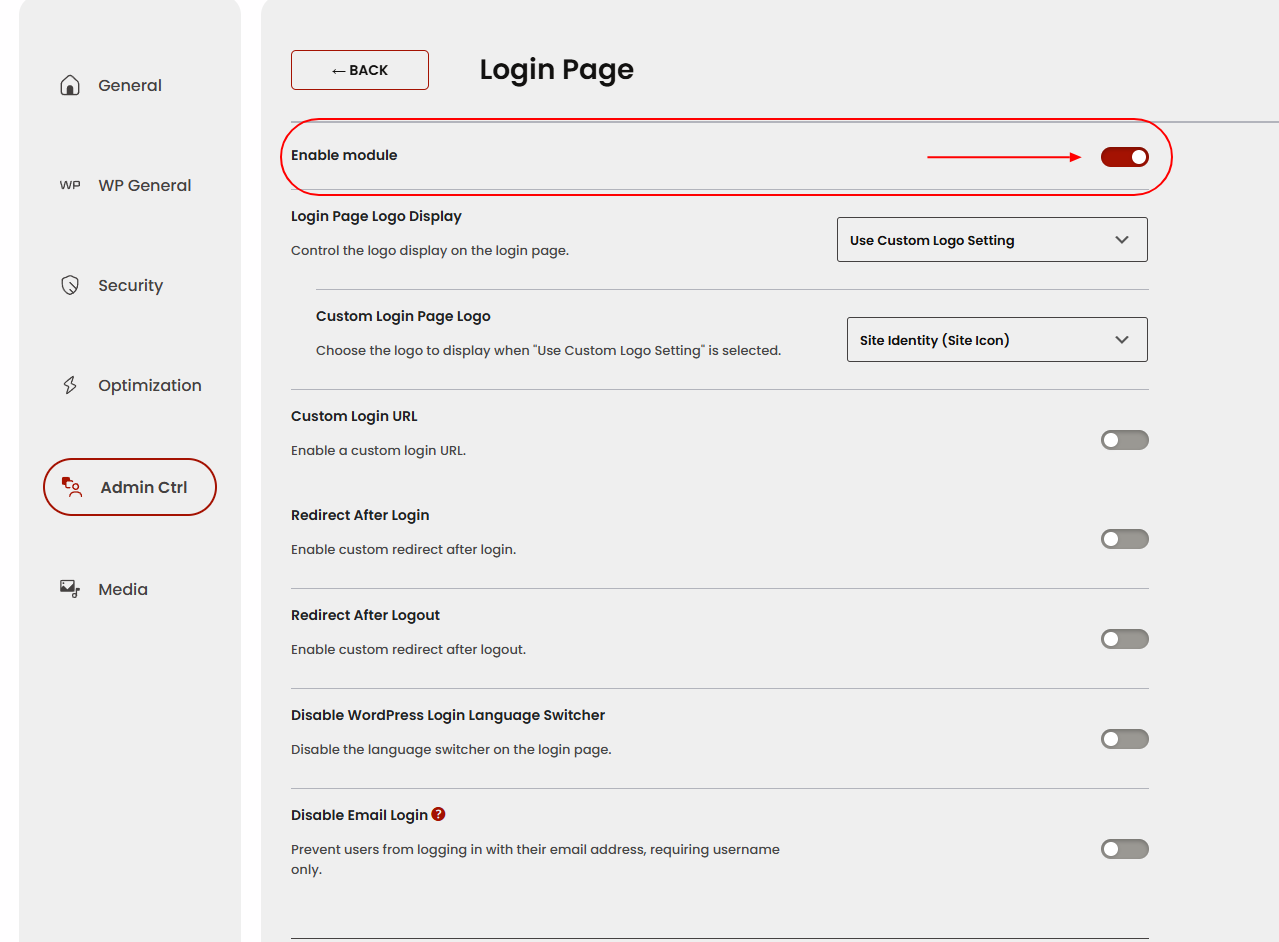
Enable (or disable) any option you would like to use, then save changes at the bottom of the module page.
Available Login Page options include:
- Hide Standard Logo from the Login Page, (deprecated as of 1.2.0, see Login Page Logo Display instead),
- Login Page Logo Display, (v 1.2.0)
- Custom Login Page Logo, (v 1.2.0),
- Custom Login URL, (v 1.2.0)
- Custom Login URL Slug, (v 1.2.0)
- Redirect After Login, (v 1.2.0)
- Redirect After Login URL, (v 1.2.0)
- Redirect After Logout, (v 1.2.0)
- Redirect After Logout URL, (v 1.2.0),
- Disable WordPress Login Language Switcher,
- Disable Email Login. (v 1.2.0)
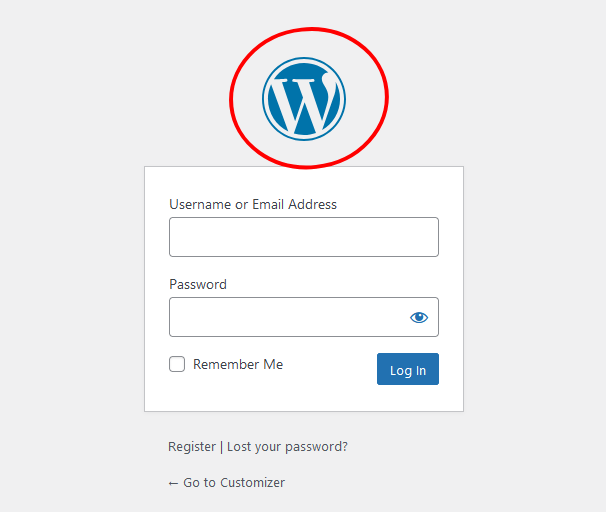
Hide Standard Logo from the Login Page
This option enables you to remove the default WordPress logo from your website's login page.
Login Page Logo Display
Login Page Logo Display option enables you to apply specific logo settings on the default WordPress login page:
- Default WordPress Logo (no changes, standard WP logo is displayed),
- Hide Logo (removes the logo entirely),
- Use Custom Logo Setting (enables you to apply upload and display your own logo).
Custom Login Page Logo
Custom Login Page Logo option allows you to display your site icon (favicon) instead of the default WP logo, or upload a custom image for the login page.
Custom Login URL
Custom Login URL option allows you to change the login page’s URL slug from /wp-login.php to something custom (e.g., /my-login ), adding a security layer by obscurity.
Users must navigate to yoursite.com/my-login instead of the standard login URL. If someone tries accessing /wp-login.php , you can redirect or show a 404.
Custom Login URL Slug
Custom Login URL Slug option allows you to configure the “slug” portion of your custom login URL (the part after the domain and slash).
If you set the slug to client-area , the login page URL becomes yoursite.com/client-area .
Redirect After Login
Redirect After Login option allows you to set a rule so that after successful login, users are sent to a specific page or URL rather than the default dashboard.
Redirect After Login URL
Redirect After Login URL allows you to specify the exact URL where users should be redirected post-login (e.g., /welcome or an external resource).
Upon successful authentication, users land on the configured URL instead of /wp-admin - ideal for membership or eCommerce flows.
Redirect After Logout
Redirect After Logout option allows you to set the destination URL a user is sent to when they log out (e.g., a “Goodbye” or “Homepage”).
After clicking “Log Out,” users are redirected to your chosen page. This can display a custom message or upsell once they leave.
Redirect After Logout URL
Redirect After Logout URL option allows you to define the exact URL for post-logout redirection (e.g., https://yoursite.com/goodbye ).
Visitors who log out go straight to that page, improving user flow for membership or restricted content sites.
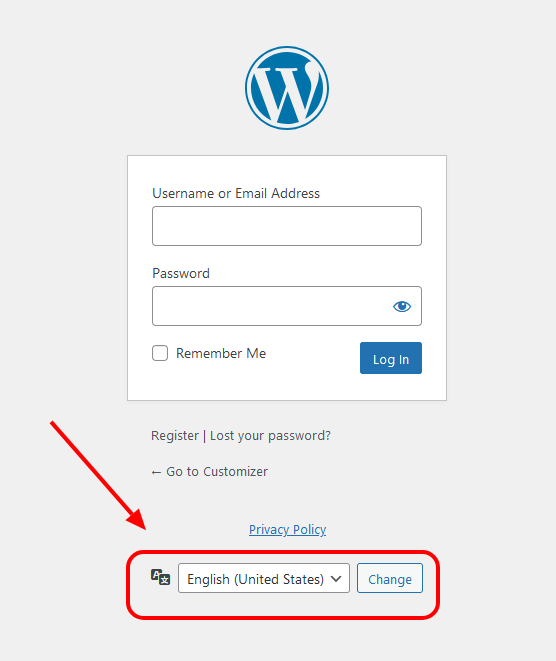
Disable WordPress Login Language Switcher
This option enables you to remove the language switcher option from the default WordPress login page.
Disable Email Login
Disable Email Login option allows you to force all users to log in using their username only, while email-based login is blocked.
If someone tries to log in with an email address, they receive an error. Only the username is accepted, which some sites prefer for consistency.
Found an error in this doc or believe it needs improvement?
Send us a prepurchase ticket, include the URL of the page, and add suggestions and more details about how we can make things better for you.
That's it!
Boost your WordPress website on all levels with OceanWP and Ocean Site Booster.