
Media: Site Booster Panel
The Ocean Site Booster's Media panel is a standalone module and enables you to control core WordPress features related to your website's media items.
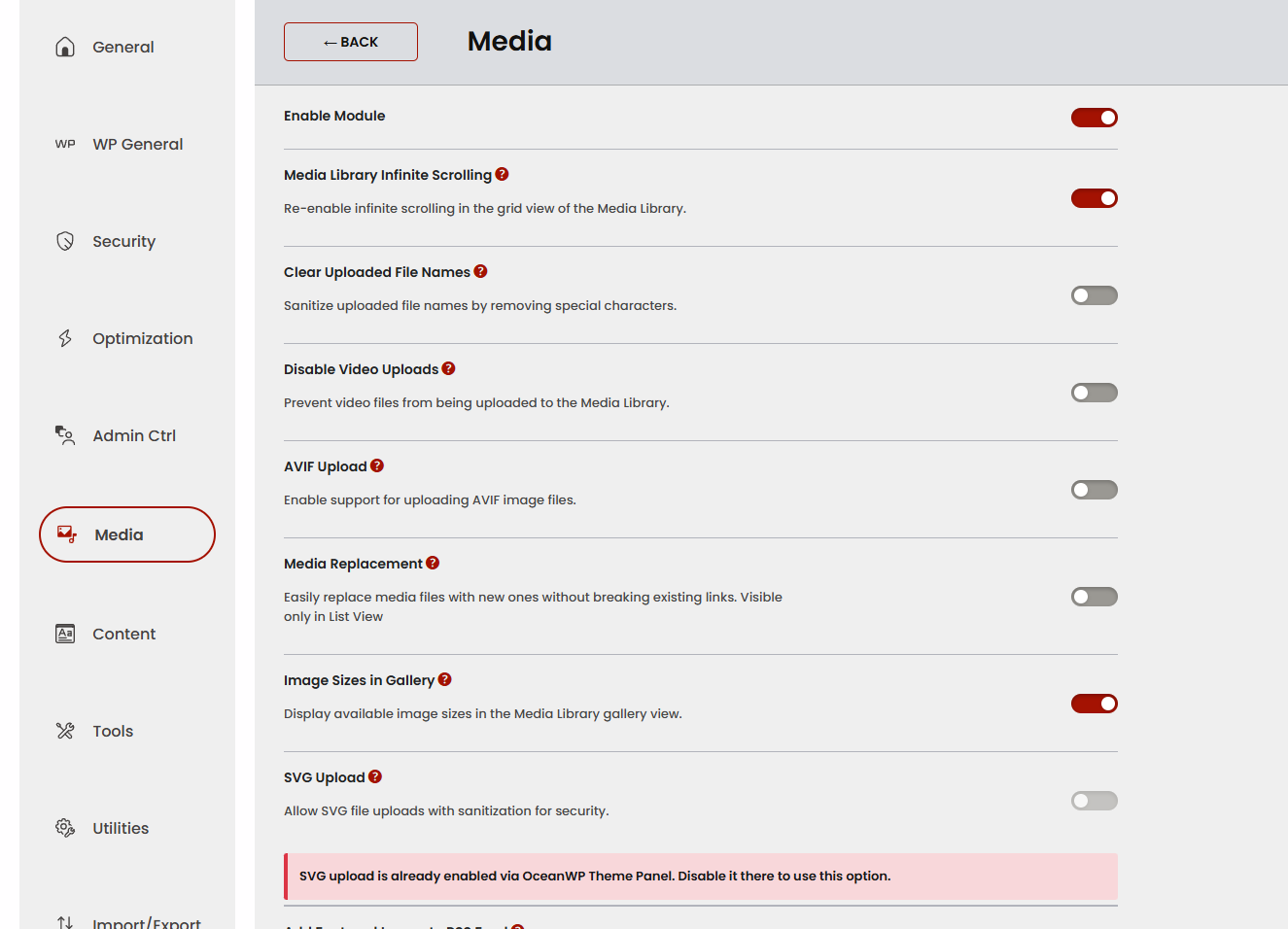
To enable Media features, toggle to enable the module.
Enable (or disable) any option you would like to use, then save changes at the bottom of the module page.
Available Media options include:
- Media Library Infinite Scrolling,
- Clear Uploaded File Names, (v 1.3.0+)
- Disable Video Uploads, (v 1.3.0+)
- AVIF Upload, (v 1.3.0+)
- Media Replacement, (v 1.3.0+)
- SVG Upload, (v 1.3.0+)
- Add Featured Image to RSS Feed, (v 1.2.0+)
- Media File Attachment Pages. (v 1.3.0+)
Media Library Infinite Scrolling
This option enables you to reenable the infinite scrolling pagination feature in Media > Library, as opposed to the current method which utilizes the Load More button pagination.
Clear Uploaded File Names
Clear Uploaded File Names option automatically removes special characters (such as symbols) from the names of uploaded files in the Media Library.
This helps ensure better SEO, avoids upload errors, and improves cross-platform compatibility.
Example: red Y7346^&%&% BLUE.jpg will become red-Y7346-BLUE.jpg after upload.
Note that, by default, WordPress already includes some file name sanitization, like replacing space with hyphens.
Disable Video Uploads
Disable Video Uploads option enables you to prevent video files upload to your Media Library. In this way, you can control the server storage space usage.
AVIF Upload
AVIF Upload option allows you to add support for AVIF file format and upload this type of files to your Media Library.
Media Replacement
Media Replacement option allows you to replace any existing image in your Media Library, and for that image to be automatically replaced across content where the original is or has been used.
The URL of the replaced file remains the same.
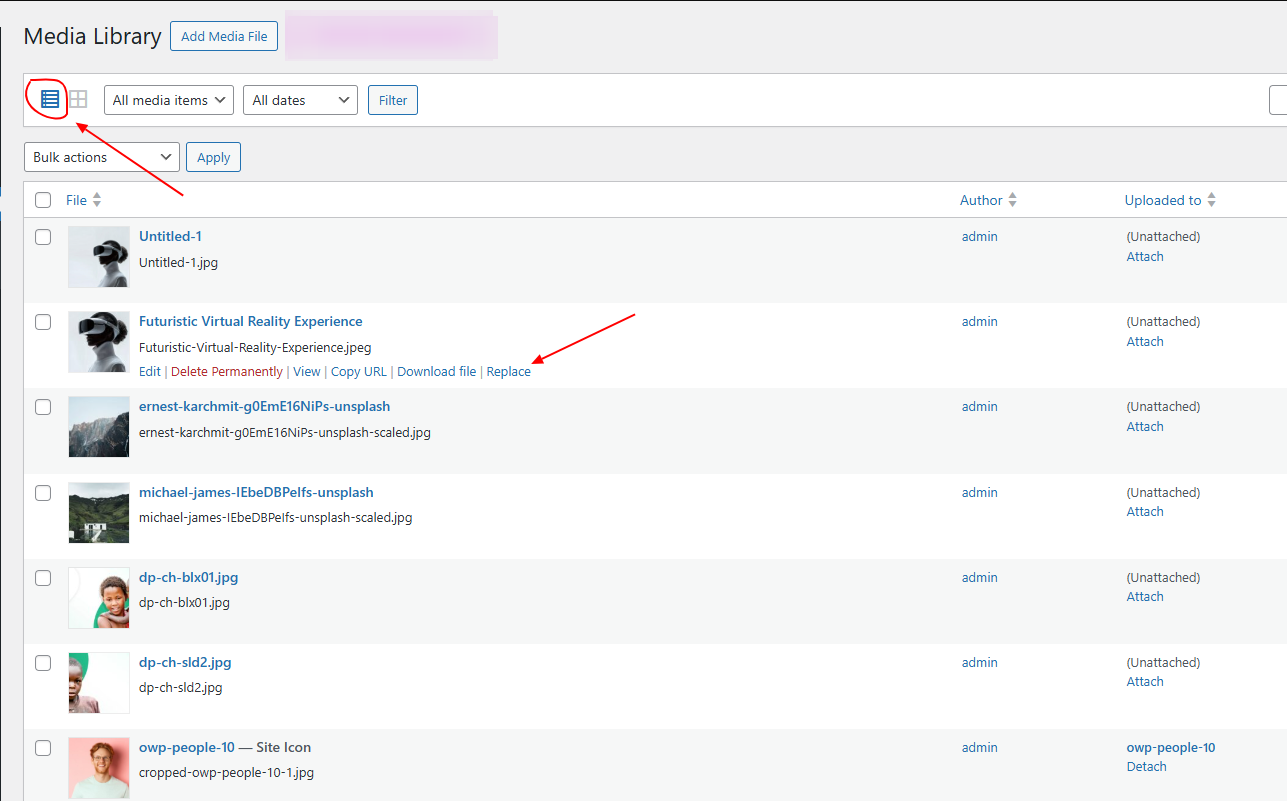
The Media Replacement option is only available within the Media Gallery List view.
Hover over the image you want to replace, and choose the Replace option.
This feature lets you quickly replace existing images with new ones, without having to manually locate and update every place the original image was used. It saves you time and ensures that all references are automatically updated across your site.
SVG Upload
SVG Upload option allows you to add support for SVG file format and upload this type of files to your Media Library.
If you're using the OceanWP theme, SVG file format support for the Media Gallery is also included for free via the OceanWP Panel. See WP dashboard, OceanWP > OceanWP Panel > Integration > SVG Support.
We made sure to secure cross-compatibility between these two options.
Add Featured Image to RSS Feed
Add Featured Image to RSS Feed option allows you to automatically insert the post’s featured image into the RSS feed output, so subscribers see a thumbnail alongside the excerpt.
Your RSS feed entries will include an <img> tag (or enclosed HTML) with that post’s featured image. Feed readers show a preview, which can increase click-through.
If you have disable the entire Feed functionality, ie. feeds don't function on your website, there's no need to use this feature.
Media File Attachment Pages
Since WordPress 6.4 Media file attachment pages are disabled by default on all new website installations. This means that a media file's URL will display the media file directly (only the file), instead of an actual page.
Websites that started off using older WordPress versions have the media file attachment pages enabled.
The URL of the viewed files also changes, depending whether the media is supposed to display the file directly, or the attachment page.
Example URL when media displays the file directly: .../wp-content/uploads/2025/07/Untitled-1.jpg

Example URL when media displays the attachment page: .../untitled-1

Media File Attachment Pages option enables you to choose whether or not you want to display media file attachment pages:
- Default: use your current WordPress settings (ie. media attachment pages are disabled or enabled).
- Enable Attachment Pages: display media attachment pages.
- Disable: display the media file only.
Note: after using these settings, and changing the value from Default to any other option (Enable Attachment Pages or Disable), the newly selected value becomes your new default. Have this in mind, if you plan making more changes (eg. reselecting Default again, after assigning a new value).
Found an error in this doc or believe it needs improvement?
Send us a prepurchase ticket, include the URL of the page, and add suggestions and more details about how we can make things better for you.
That's it!
Boost your WordPress website on all levels with OceanWP and Ocean Site Booster.